Sharing with family
Send a link or read a code so your whole family sees the same people, kept in sync automatically.
Our People can share one library of faces across everyone’s phone, so the whole family is always looking at the same up-to-date list. There are no accounts and no passwords — just a link or a short code. Anyone already in the family can invite someone new, so there’s no single “owner” who has to do it.
Inviting someone
-
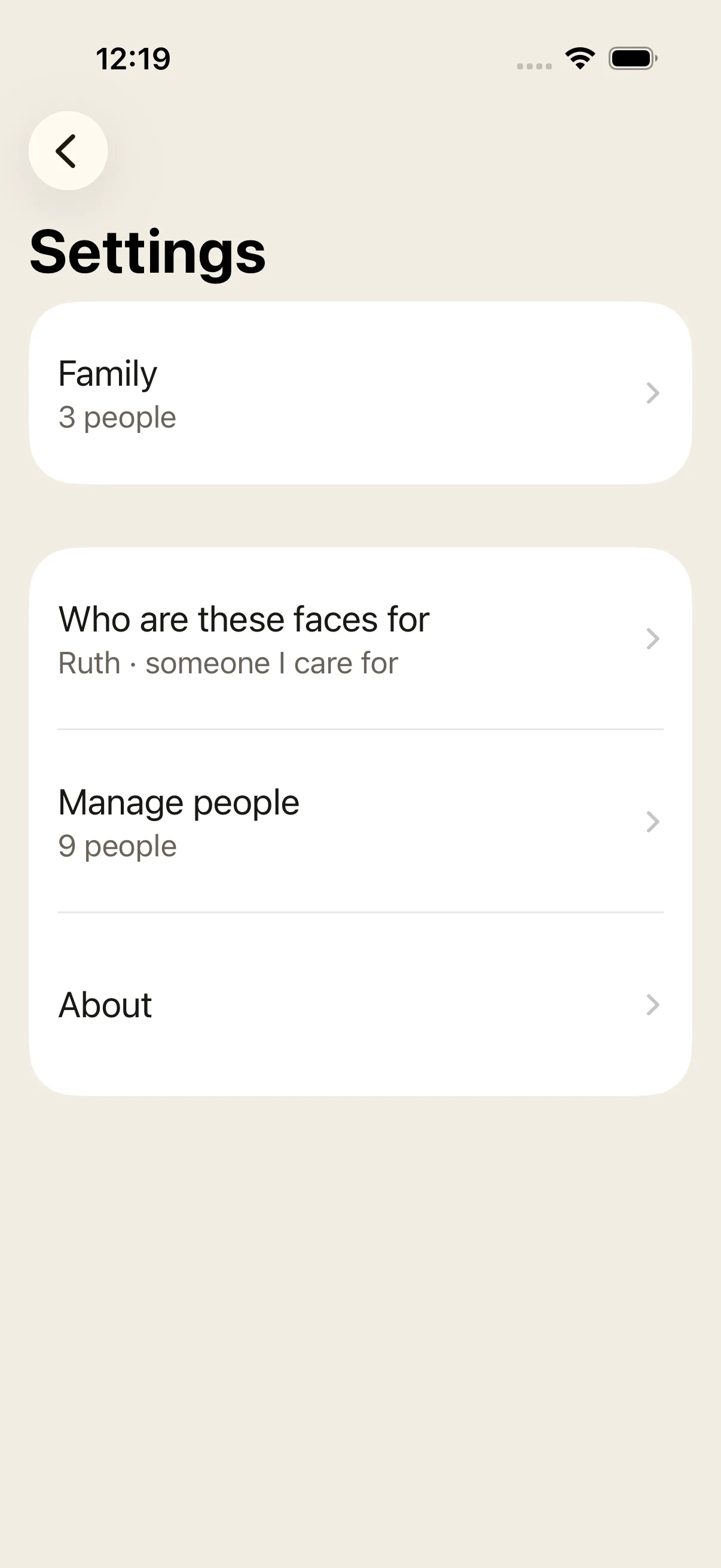
Open Settings and tap Family.
-
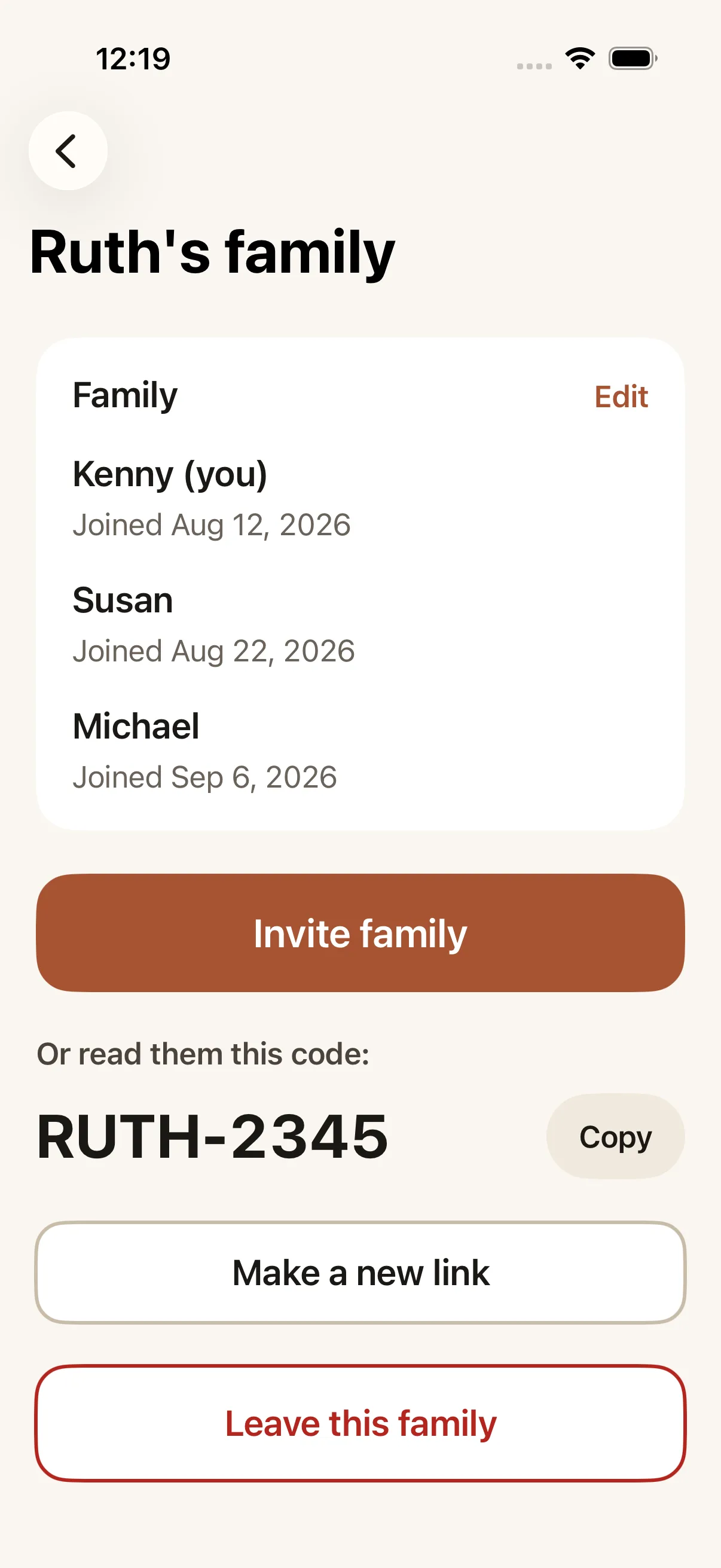
On the Family screen, tap Invite family.
-
Your phone’s share screen opens with a message already written, including a link. Choose Messages (or any other app) and send it.
If it’s easier to just tell someone the code out loud, or if sending a link isn’t convenient, skip the share screen: the code is shown in big letters under “Or read them this code:” on the same Family screen, with a Copy button beside it.
What the other person does
- They install Our People from the App Store, on their own phone.
- Then they tap the link you sent — it opens Our People directly with the code already filled in — or, if they’d rather, they open the app themselves, choose “I have a link or a code” on the “Start fresh, or join your family?” screen — the first question the app asks — and type the code.
- They’re asked “What’s your name?” — a first name, so everyone knows who’s who.
- Then “Is this Ruth’s phone?”, using the name from your library: Yes if the phone belongs to the person the faces are for, No, I’m helping if they’re setting it up for them.
- Their app connects to the family’s library.
They’re never asked who the faces are for, or for that person’s name — your library already answered that.
What each phone shows
- Your phone: nothing changes — keep adding and editing people as usual, and everyone in the family sees your updates.
- Their phone: right after joining, the Browse screen shows “Getting your family’s people…” while it downloads everyone for the first time. Once that finishes, the full library appears.
Anyone can manage the family
There’s no owner — every member of the family can:
- Invite someone new (Invite family, or read them the code).
- Make a new link — replaces the current link and code. People already in the family are unaffected; the old link stops working.
- Remove someone else — on the Family screen tap Edit, then Remove beside their name, and confirm.
- Leave the family themselves — tap Leave this family at the bottom of the Family screen, and confirm. This only removes that one phone; everyone else keeps their library.
If it didn’t work: see Troubleshooting for what to do if the link doesn’t open the app, or the code doesn’t work.