Adding someone
Add a photo, frame the face, and give them a name — step by step.
Tap Add Someone on the Browse screen to add a new person to your library.
Adding several people at once? If they’re already in your iPhone’s contacts, adding several people from Contacts fills in their names and photos for you.
1. Choose a photo
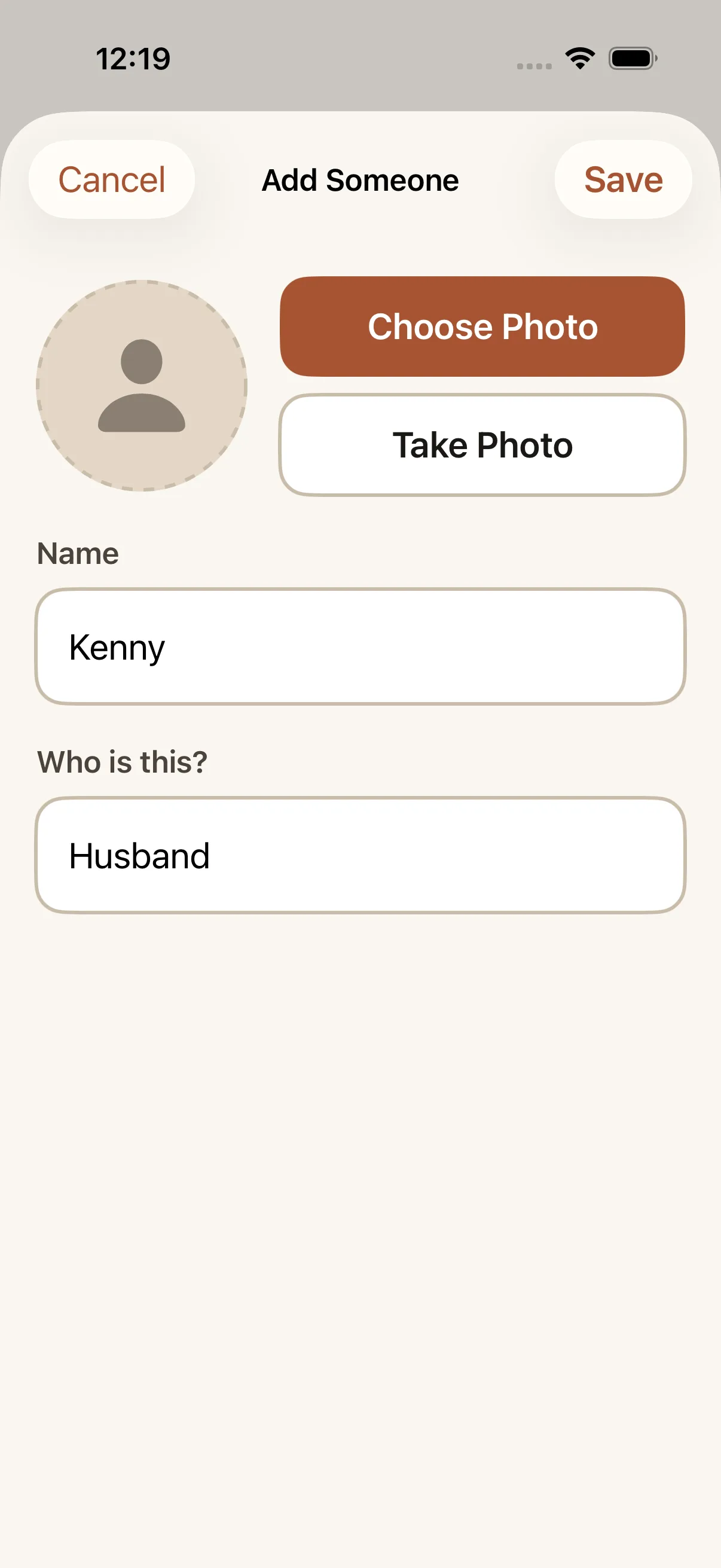
Tap Choose Photo to pick an existing picture, or Take Photo to use the camera right there. Either way, pick a photo where the person’s face is clear.
2. Frame the face
You’ll land on Frame the Face. Pinch and drag the photo so the face fills the frame — this is what makes it easy to recognize at a glance later. When it looks right, tap Use Photo.
3. Add a name
Type the person’s name. A full name, or a first name plus something that sets them apart (“Grandma Rose”, “John from church”), helps once the library grows and two people share a first name.
4. “Who is this?”
Type who this person is (their relationship) — for example, “Daughter” or “Neighbor.” As you type, Our People suggests matching relationships so you don’t have to type the whole word.
5. “Family group” (optional)
If this person belongs to a household you’d rather keep behind one circle — “The Kaufmans”, “Susan’s family” — type it here. Groups you’ve already used are offered as you type, so tap one rather than retyping it. Leave it blank and they sit on the People screen with everyone else. See family groups.
6. Save
Tap Save, and the person appears on the Browse screen right away.
Editing or removing someone later
- If you’re in caregiver mode (you set the app up for someone you care for), tap the Edit button to change a person’s photo, name, relationship, or family group, or to remove them.
- If you’re in “Me” mode, go to Settings → Manage people to make the same changes.
If it didn’t work: if a photo won’t load while framing, go back and choose a different one — very large photos from some cameras can take a moment, so give it a few seconds before trying again.