Getting started
Install Our People and answer a couple of short questions to set up your library of faces.
Our People is free on the App Store. Install it, open it, and you’ll be asked a couple of short questions before you see anything else.
“Start fresh, or join your family?”
This is the first question, because the answer changes what comes next:
- Start fresh — you’ll build the list of people from scratch, adding photos and names one at a time.
- I have a link or a code — if someone in your family already set up Our People, use this to join their library instead of starting a new one. See Sharing with family for how joining works.
“Who are these faces for?”
You’ll only see this question if you chose Start fresh — when you join a family, the answer is already part of the library you’re joining.
Choose one:
- Me — you’re setting this up for yourself, to help remember the people around you.
- Someone I care for — you’re setting it up for a family member. You’ll be asked for their first name.
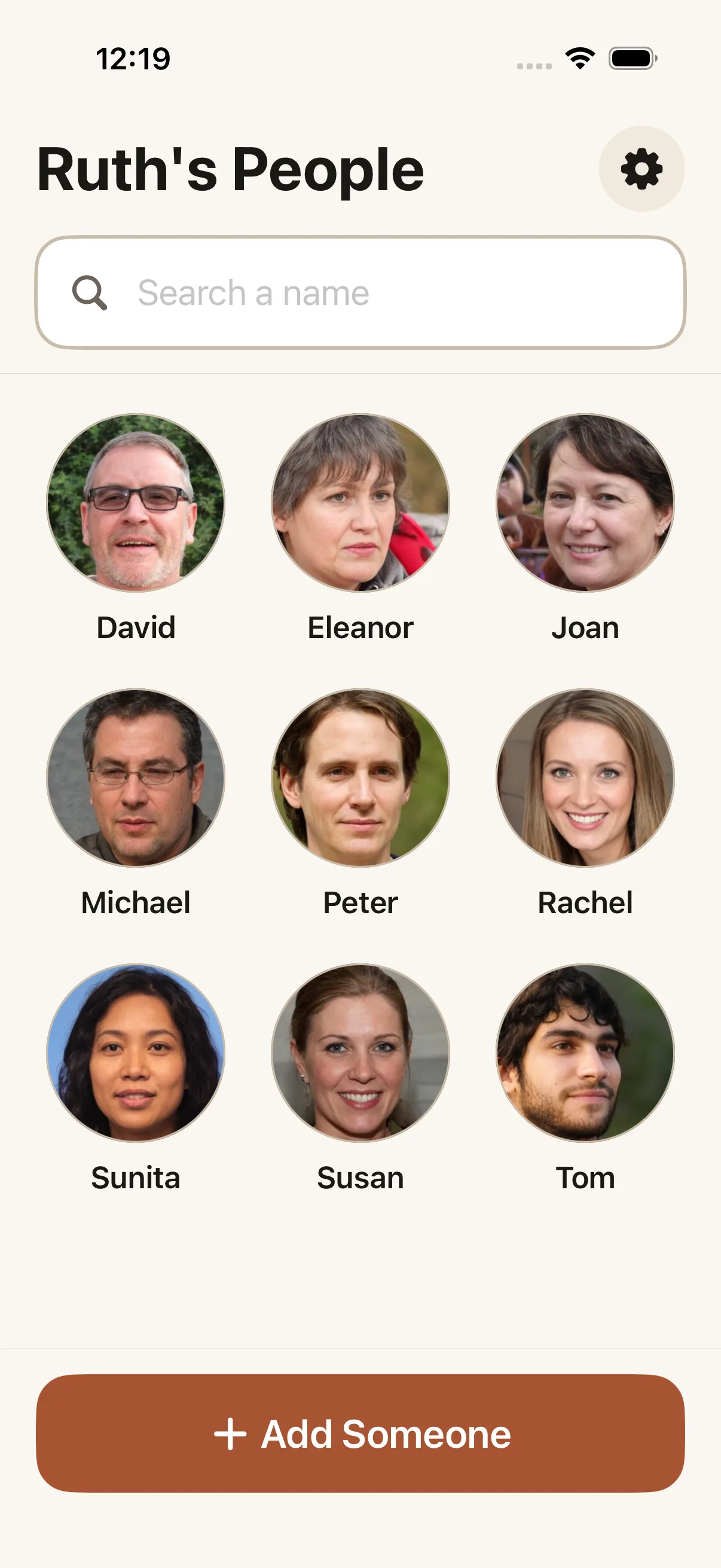
This choice changes a couple of things later: whose name shows at the top of the Browse screen, and how names are edited (more on that in Who are these faces for). You can change it later in Settings.
“What’s your name?”
Either way, you’ll be asked for your own first name, so the rest of your family knows who’s who.
If you joined a family, one more question follows: “Is this Ruth’s phone?” (with the name from the library you joined). Answer Yes if the phone belongs to the person the faces are for, or No, I’m helping if you’re the one setting it up for them.
What you’ll see next
Once setup is done, you land on the Browse screen. Its title is “My People” if you chose “Me,” or “{Name}’s People” if you set it up for someone else. From here you can search for a face by typing a few letters, tap any face to see it full-size, or tap Add Someone to add the first person.
If it didn’t work: if the app seems stuck on setup, close it fully and reopen it — your answers are saved as soon as you pick them.