Adding several people from Contacts
Pick a group from your iPhone's contacts and add them all in one sitting.
Adding a whole family one person at a time takes a while. If the people you want are already in your iPhone’s Contacts, you can pick several at once and Our People will fill in their names and photos for you.
1. Open the picker
Tap the gear at the top of the People screen to open Settings, then tap Add from Contacts.
Your iPhone’s own contact list opens. Tap everyone you want — you can pick as many as you like — and confirm. Our People only reads the people you picked, and only their name and photo. If your iPhone doesn’t hand over their photos along with them, Our People asks once for permission to read your contacts so it can fetch just those photos — you can say no, and those cards simply start without a photo for you to add yourself.
2. Check each card
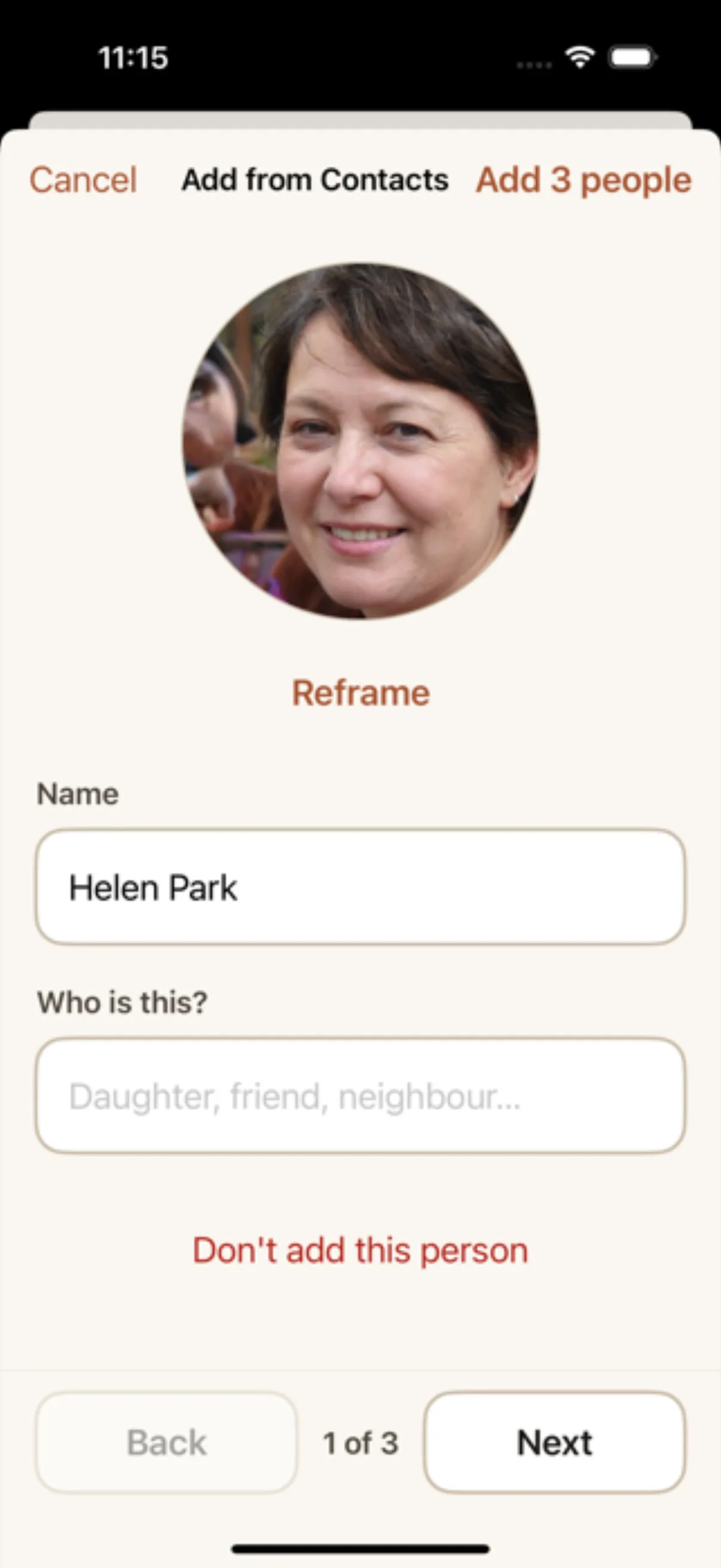
You get one card per person. Swipe between them, or use the Back and Next buttons — a line between them, like “3 of 14”, shows where you are.
On each card you can:
- Add photo if the contact didn’t have one, to pick a picture from your photos, or Take Photo to use the camera right there — the same two choices as Add Someone. If the contact already had a photo, Reframe moves it so the face fills the circle, and Change photo or Take Photo swaps it for a better one.
- Change the Name. Contacts often store a full name; a first name plus something that sets them apart reads better under a photo.
- Fill in Who is this? — “Daughter”, “Neighbor”. As you type, suggestions appear. This is optional.
- Fill in Family group to file them under one circle — “The Kaufmans”. If the contact has a last name, Our People offers “The Parks” as a suggestion; nothing is filled in until you tap it. See family groups.
- Tap Don’t add this person to drop a card you didn’t mean to pick.
3. When someone is already there
If a name matches someone already in your people, the card says so and shows their face: “There’s already a Susan (Daughter)”. Two buttons:
- Same person, skip — drops the card.
- Different person, add anyway — keeps it, for the second Susan.
4. Add them
Tap Add 12 people at the top right. They’re added one at a time, and the People screen fills in as they land. If a card still has no name, tapping the button takes you to that card instead — fill the name in and tap again.
When it’s done you’ll see how many were added, and how many still need a photo. Tap Done.
Things worth knowing
- Relationships aren’t imported. Contacts stores them the wrong way round (“mother: Ruth” sits on Susan’s card), so Our People leaves the field for you to fill in.
- Nothing from Contacts is kept. Only the name and photo you see on the card are saved, and only for the people you add.
- A free family holds 50 people; an unlimited one holds as many as your family needs. If your picks would go past what the family has room for, the last ones are left out and a line on the first card says how many — with an Unlock button when the family is still on the free tier. See Free, and Our People Unlimited.