Family groups
Put a whole household behind one circle, so the People screen stays short.
Once a library holds thirty or forty faces, scrolling for one of them takes a while. A family group puts a household behind a single circle: “The Kaufmans” sits at the top of the People screen, and tapping it shows just the Kaufmans.
How to put someone in a group
A group is simply a label you give a person — there is nothing to create first.
- Tap a face, then Edit (or, in “Me” mode, Settings → Manage people).
- In Family group, type a name for the household: “The Kaufmans”, “Susan’s family”, “the neighbours”.
- Tap Save.
Do the same for the next person, and as you type you’ll see the group you already made offered below the field — tap it, so both people end up under exactly the same name. If you mistype a family’s name, the app offers the one you already have.
Make a family in one go
If the people are already in the app, you don’t have to edit them one at a time.
- Go to Settings → Manage people and tap Make a family group.
- Type a name for the household.
- Tap each person who belongs in it. A tick shows who you’ve chosen; tap again to take it back. The search box finds a name in a long list.
- Tap the button at the bottom — it tells you what it is about to do, such as “Add 3 people to The Kaufmans”.
Someone who is already in another family says so under their name. Ticking them moves them: a person is only ever in one family.
To change a family later, open its circle and tap Add or remove people. The people in it are already ticked; tick or un-tick, then Save.
What changes on the People screen
The group circles come first, in alphabetical order, and show a few of the faces inside them. Everyone who is in no group follows, just as before. A person who is in a group is behind their circle, not on the main screen.
Inside a group you see that household’s faces, and a “‹ Back to Ruth’s People” button at the bottom. Tap a face there and the button at the bottom of their screen reads “‹ Back to The Kaufmans”, so you never lose your place.
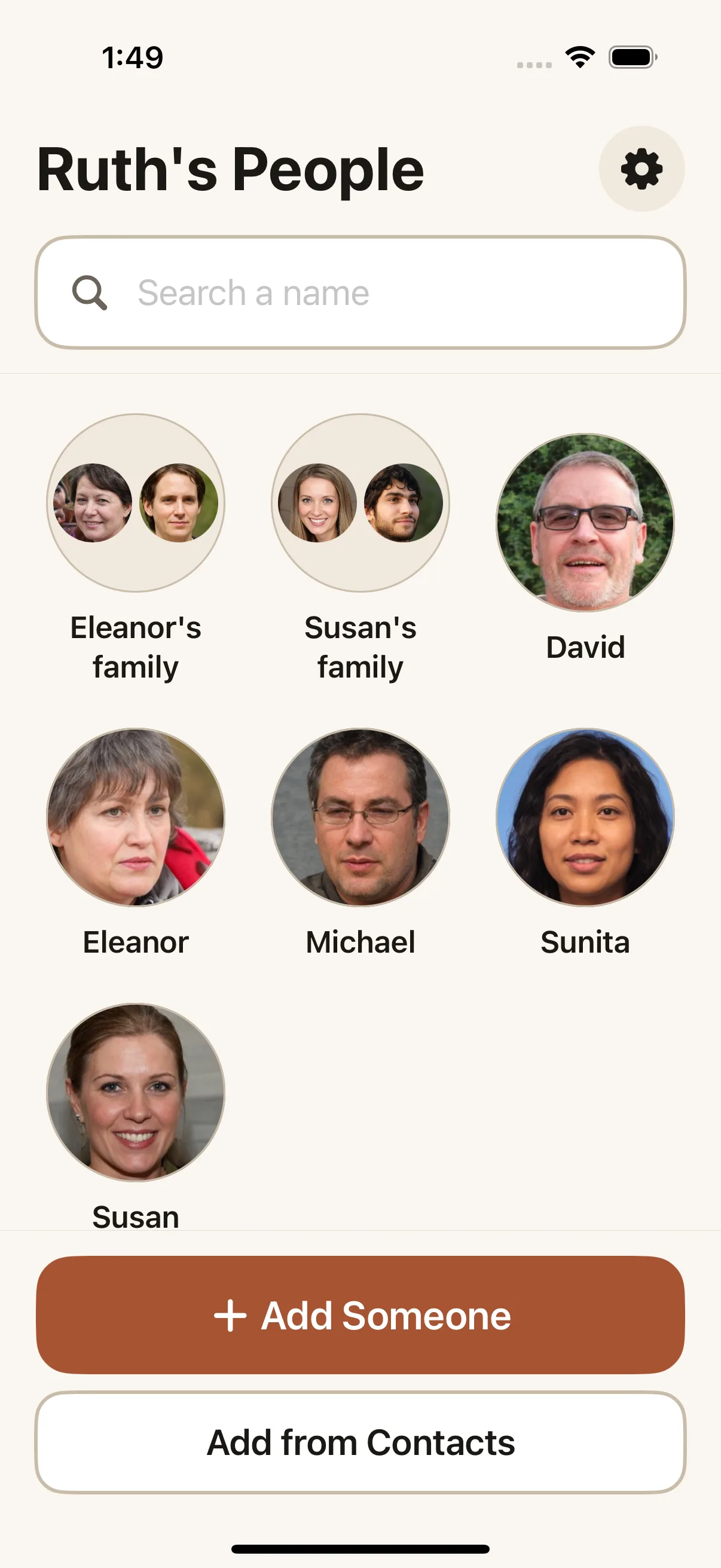
Keep the people she looks for most often out of any group
This is the whole trick. The daughter who visits every day, the neighbour who knocks on Tuesdays, the husband — leave them ungrouped, where they are one tap away. Put the households she sees twice a year behind one circle each. The screen then holds the handful of faces that matter daily, plus a short row of circles for everybody else.
Searching still finds everyone
Search reaches into groups: type “kaufman” and The Kaufmans comes first, as a row you can tap to open the whole household. Everyone in it is listed underneath, with the group name under their relationship.
Renaming or removing a group
A group is a label on each person, so renaming one means editing each person in it and typing the new name (the suggestion list makes the second and third quick). A group with one person in it is still a group; take the label off the last person — or un-tick everyone under Add or remove people — and the circle simply goes away. The people stay exactly where they were.